

Download the app for your device below depending on your phone. Your phone needs to have NFC capabilities and have it enabled for it to work properly.
For Apple iPhone users, download this NFC Tool and follow the instructions below.
For Android phone users, download this NFC Tool and follow the instructions below.
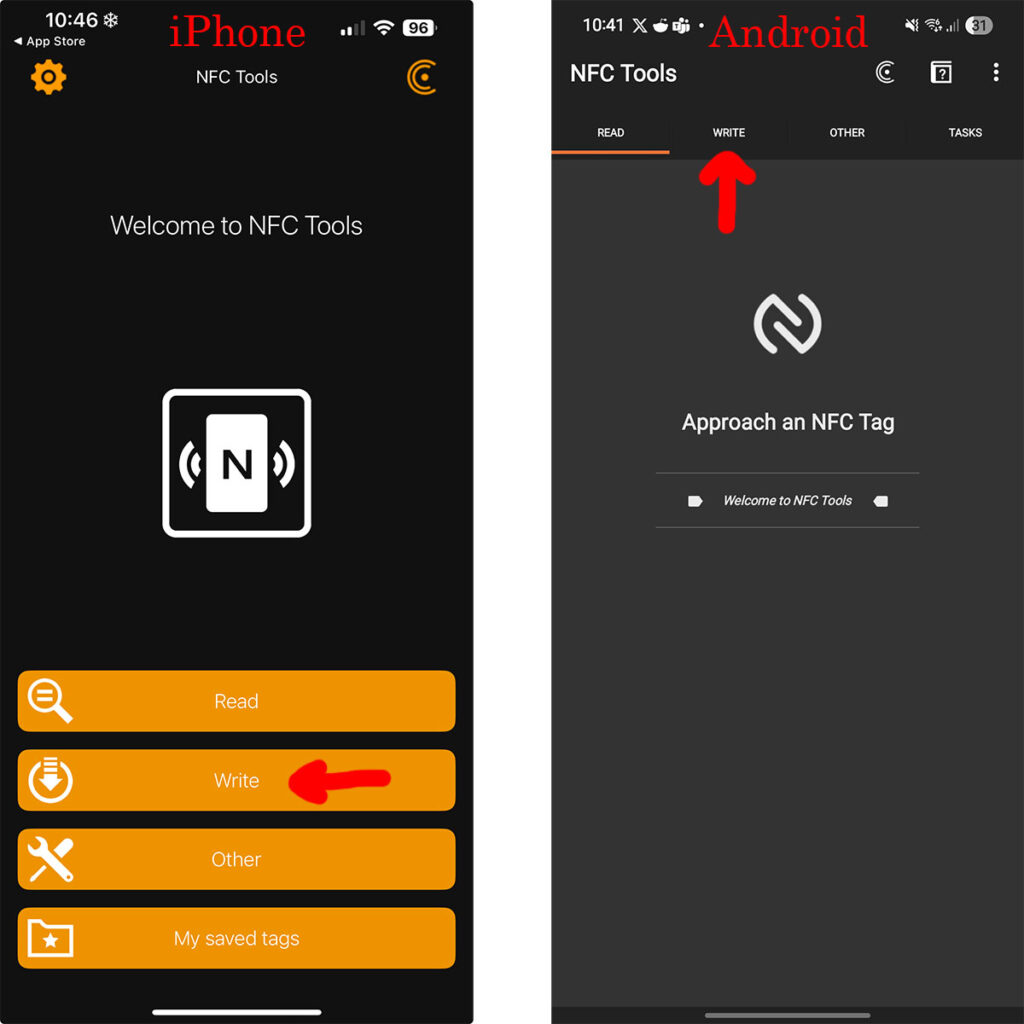
STEP 1: Click on the Write tab/button
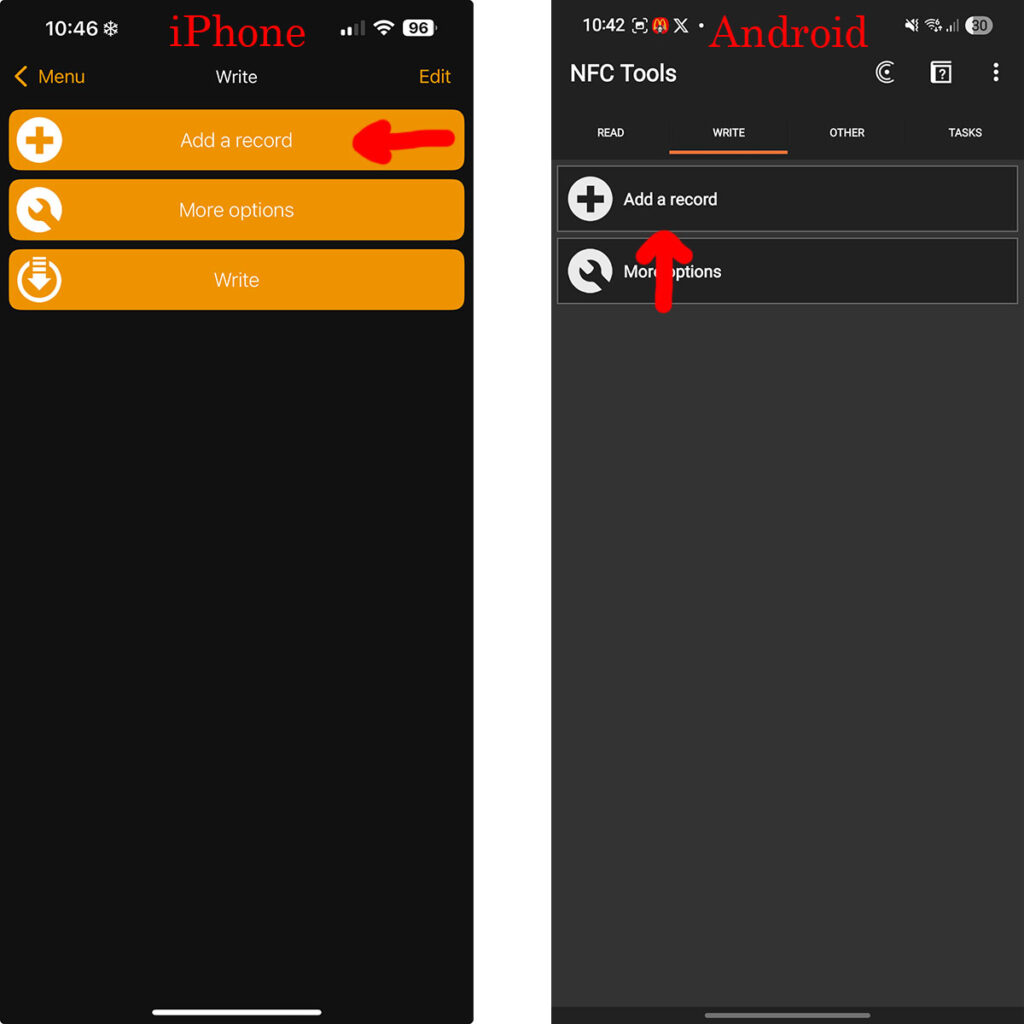
STEP 2: Tap on Add Record
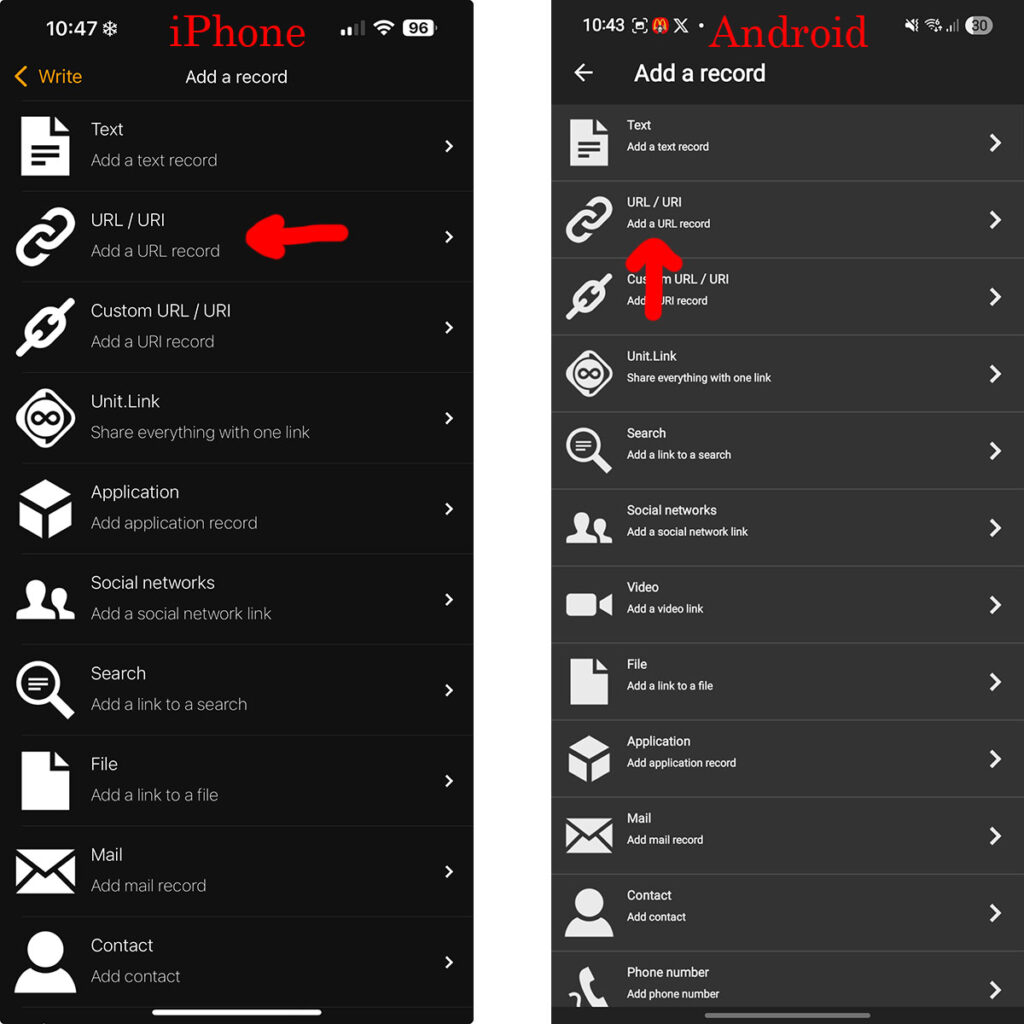
STEP 3: Tap on the URL / URI option
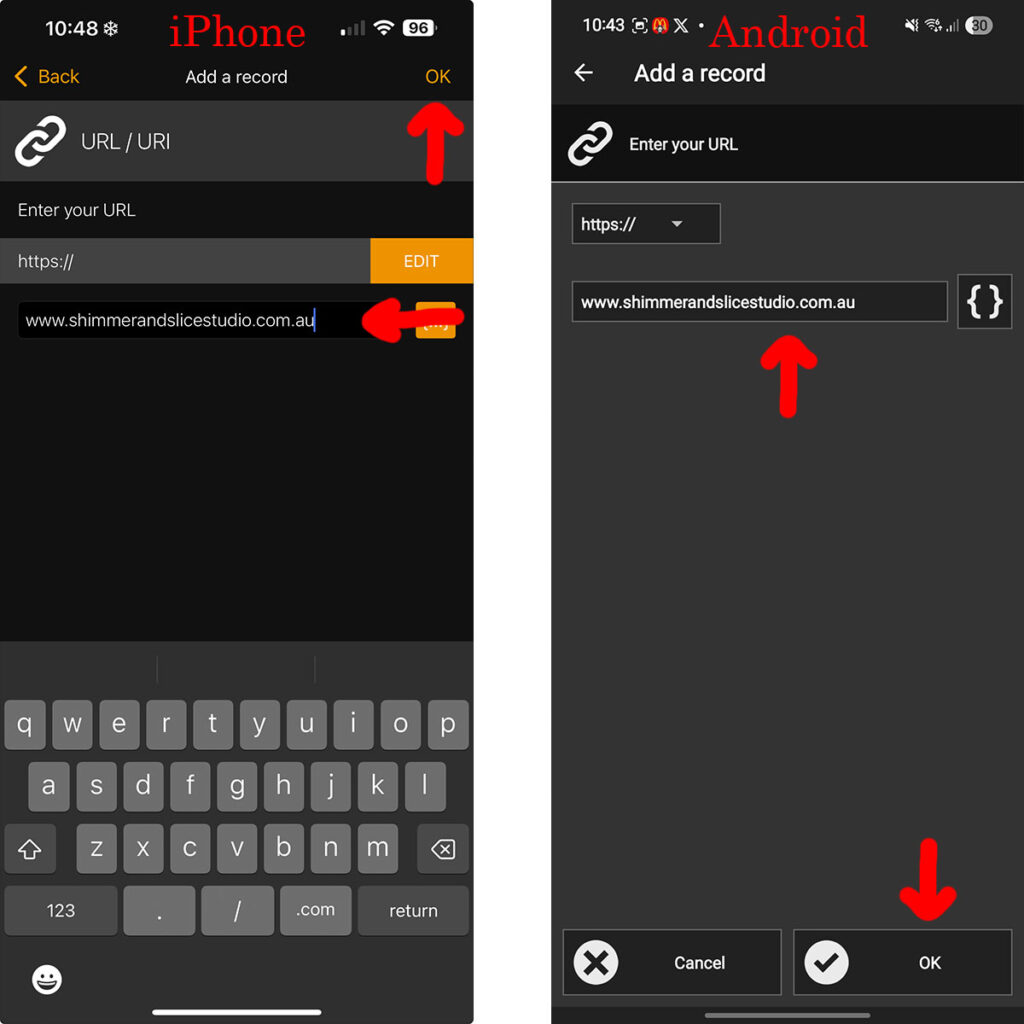
STEP 4: Type in the URL/website you want the NFC Tag to redirect to and tap OK
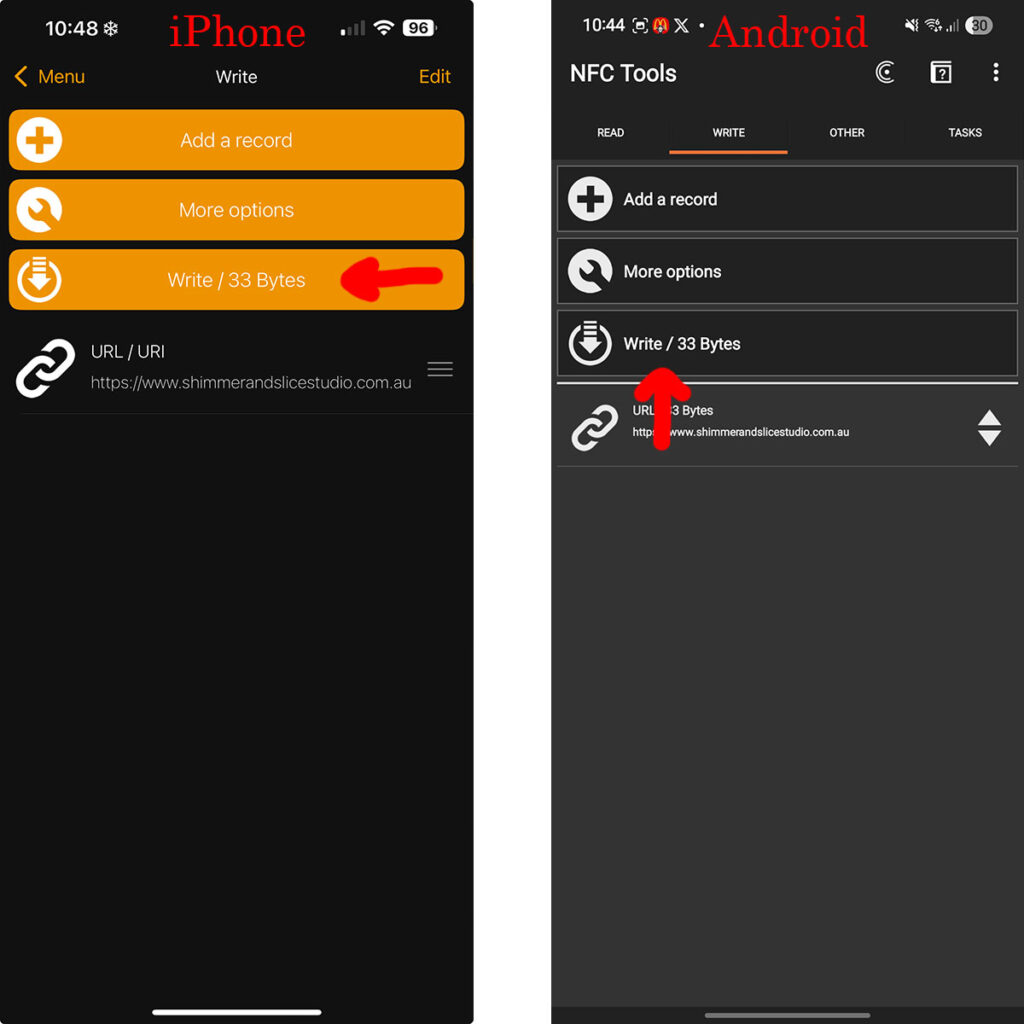
STEP 5: Tap on the WRITE button
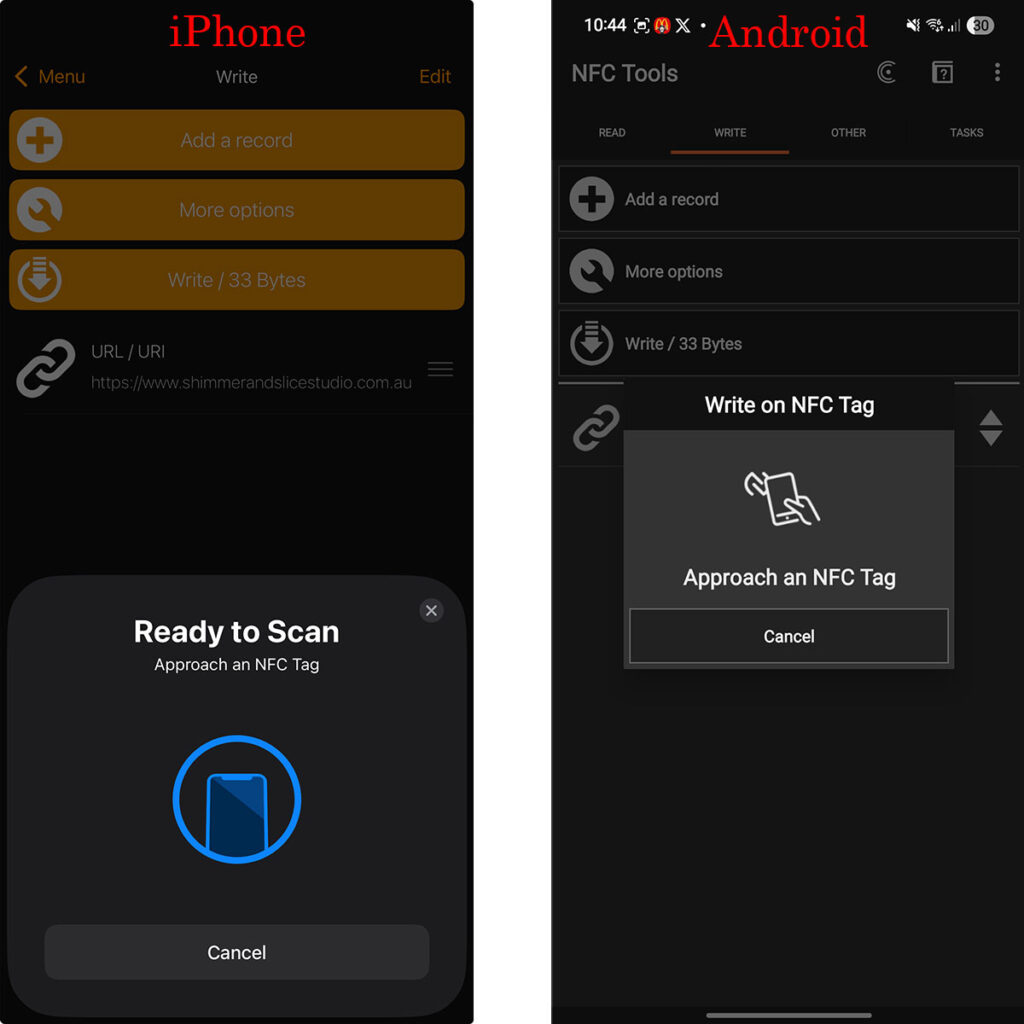
STEP 6: Move phone towards NFC Tag
STEP 7: Your NFC Tag will now be ready to use
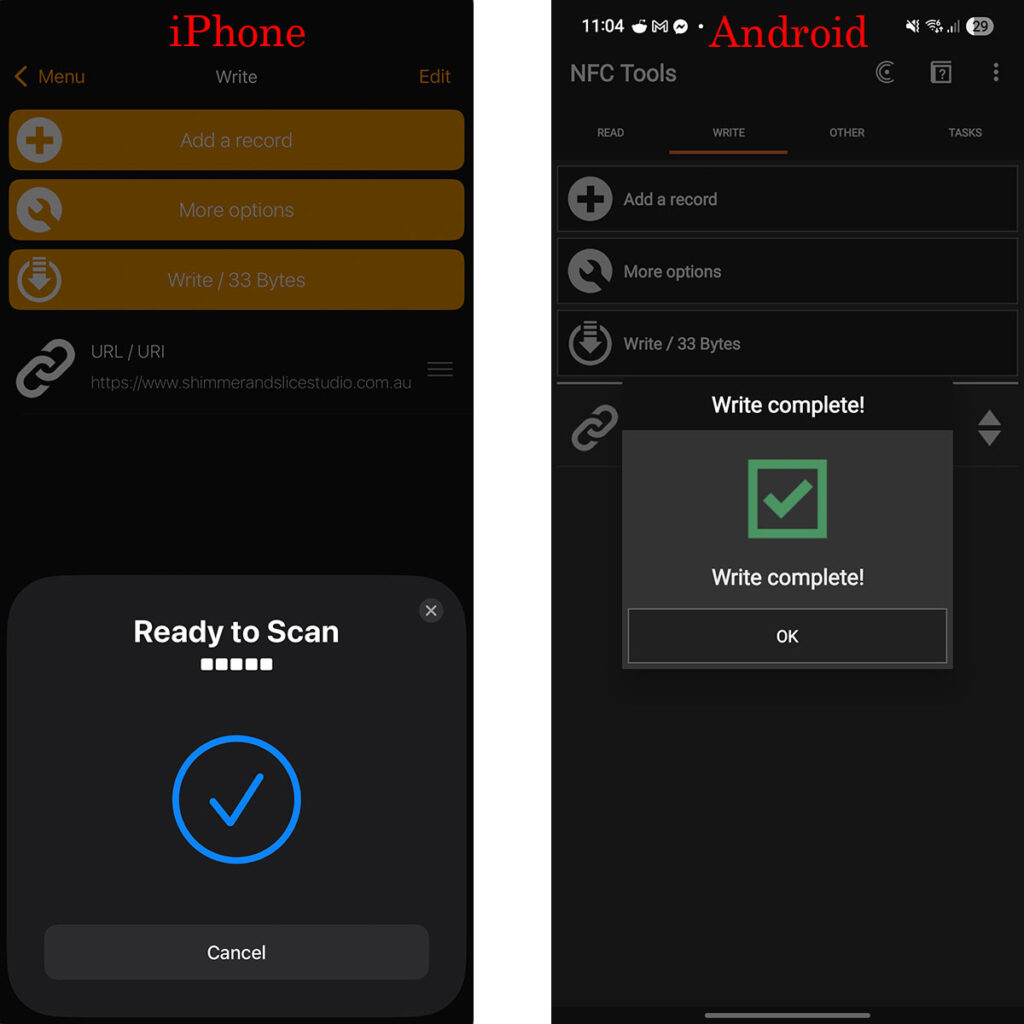
To confirm the NFC Tag was written to correctly, close the app and try tapping the NFC Tag with you phone. You should see a request to open the URL you wrote to the NFC Tag.
If you encounter an error that it couldn’t write, here’s what you can try.
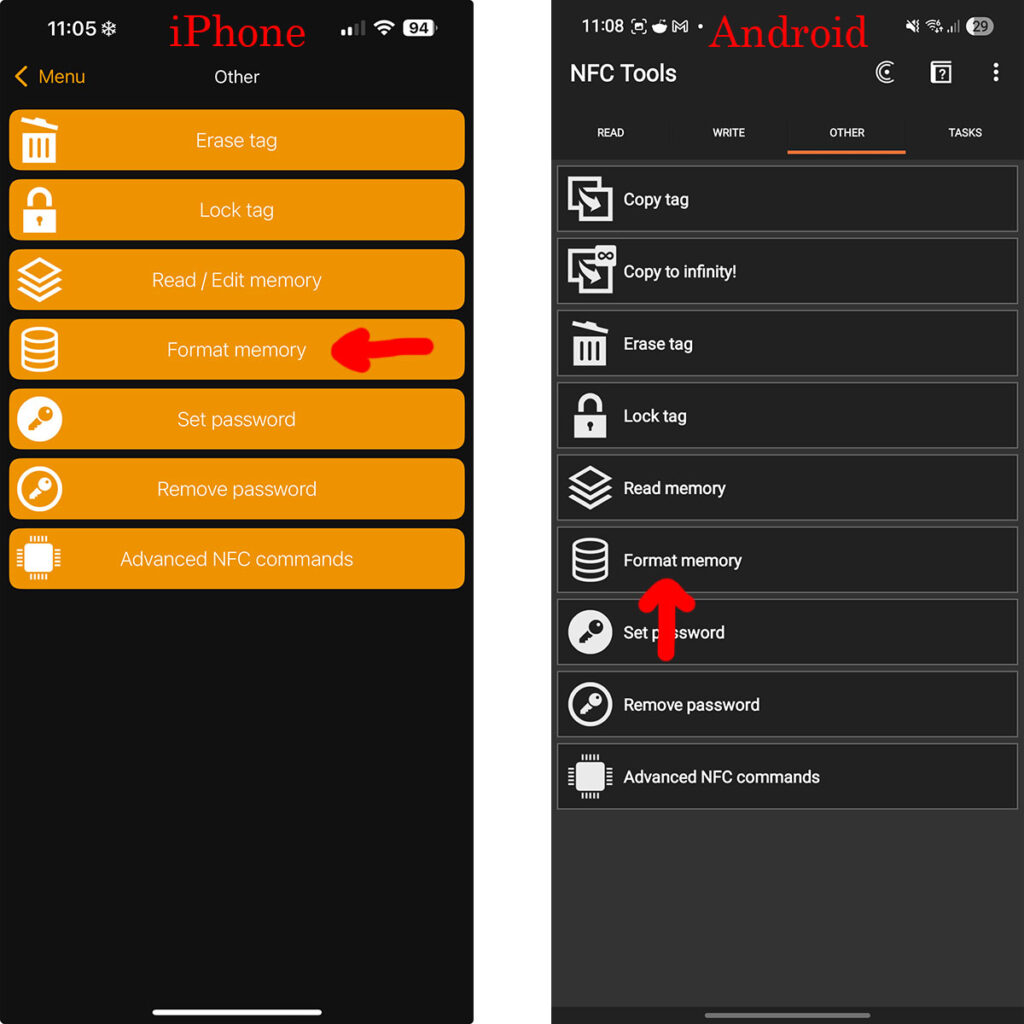
STEP 8: Open the NFC Tools app and tap on the OTHER tab/button
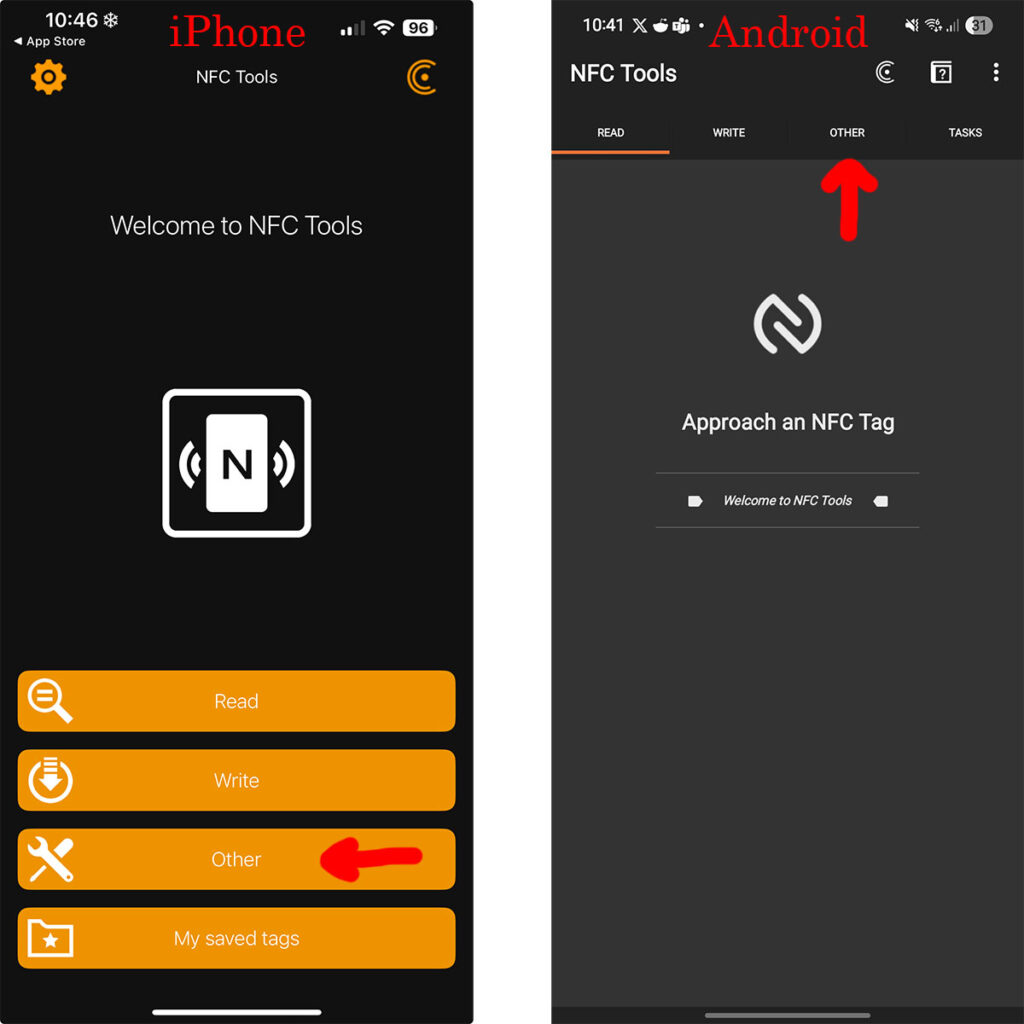
STEP 9: Tap on Format Memory
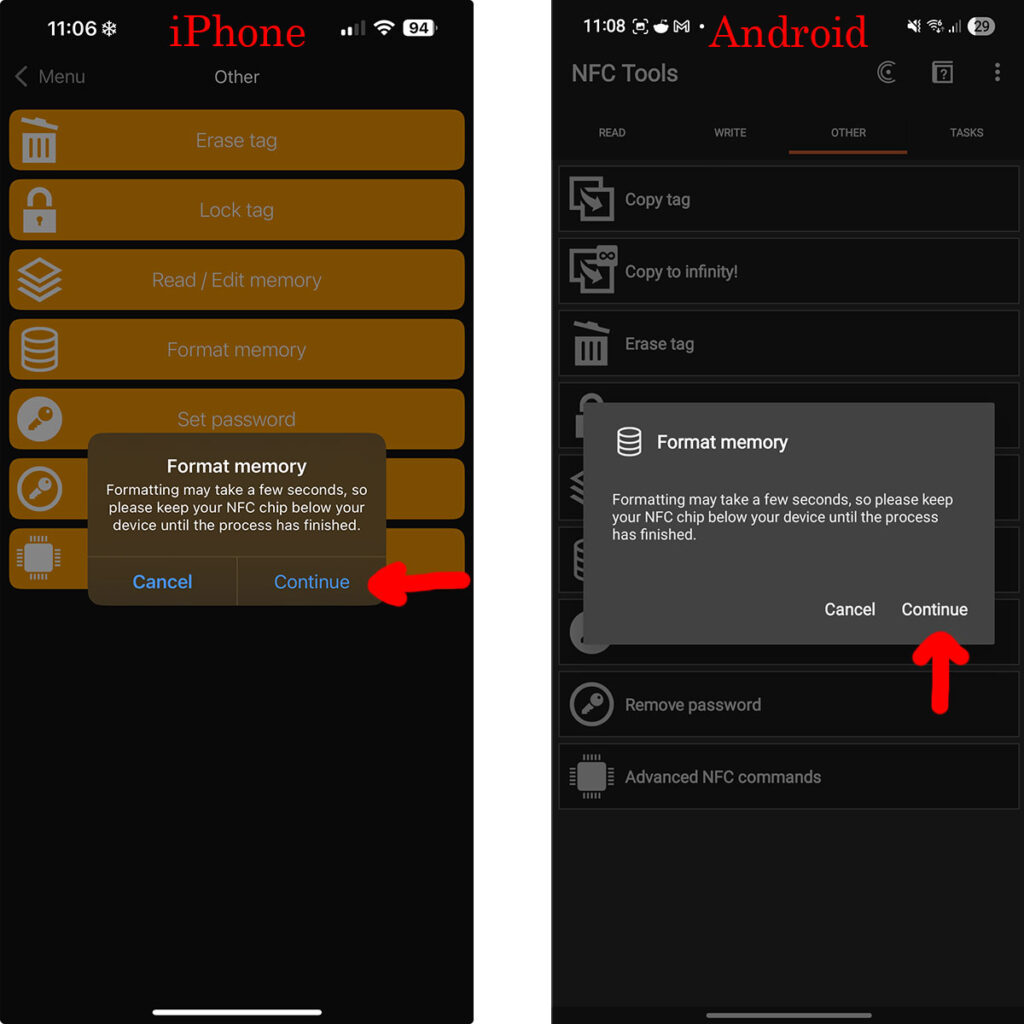
STEP 10: Tap on Continue
STEP 11: Hold the NFC Tag close to the phone and don’t move it for up to 5 seconds. Tap OK once done.
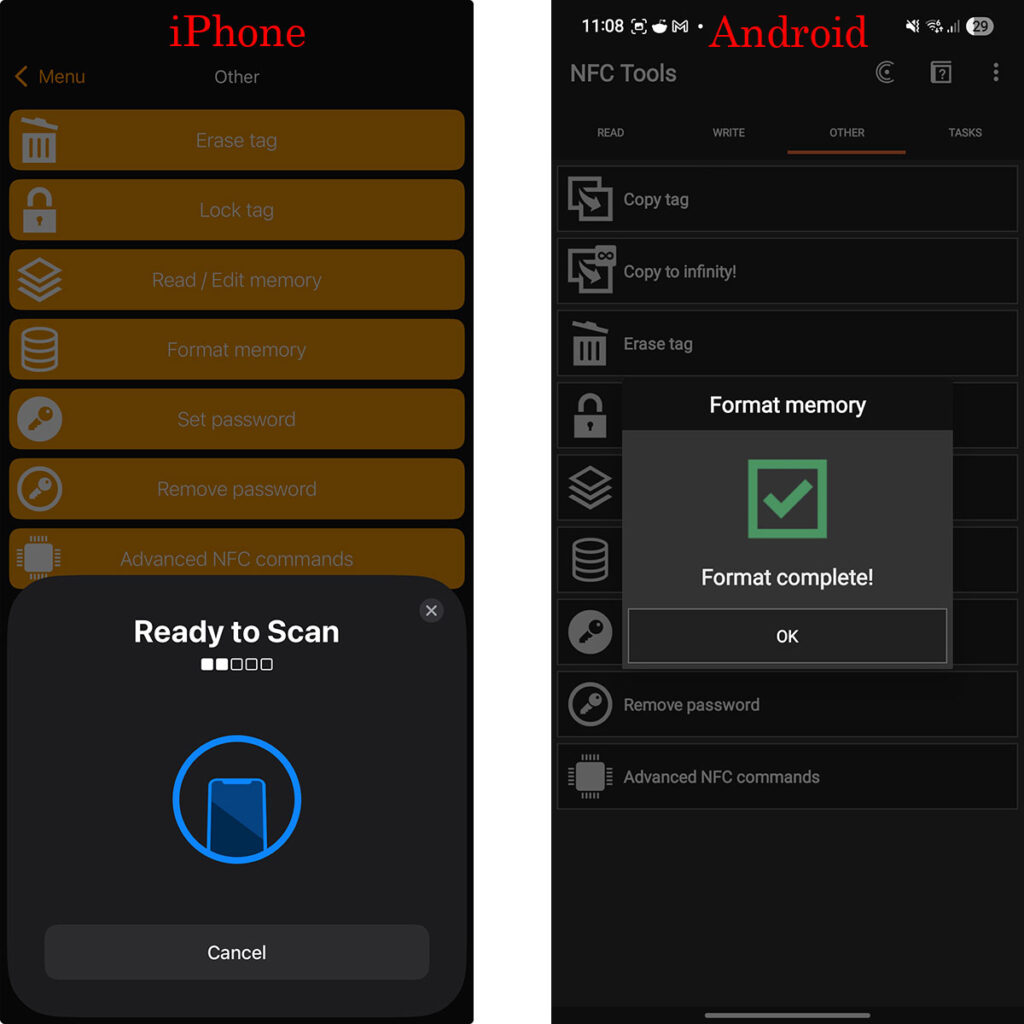
STEP 12: If successful, start from STEP 1 and this time the URL should write to the NFC Tag without and error.
Congratulations, you have successfully written to your new NFC Tag from Shimmer and Slice Studio. Don’t forget to share a social link to your new NFC Tag with us!
Leave a Reply
You must be logged in to post a comment.